
Get Started with openstatus CLI
| Time | ~10 minutes |
| Level | Intermediate |
| Prerequisites | openstatus account, command-line experience, API key from your workspace (Settings > General > API Keys) |
In this tutorial, you'll install the openstatus CLI and use it to export your existing workspace into Terraform configuration. That gives you a version-controlled, reviewable definition of your monitoring you can then manage with the standard plan / apply workflow.
By the end you'll have the openstatus CLI installed and authenticated, and your monitors, status pages, and notification channels written out as .tf files.
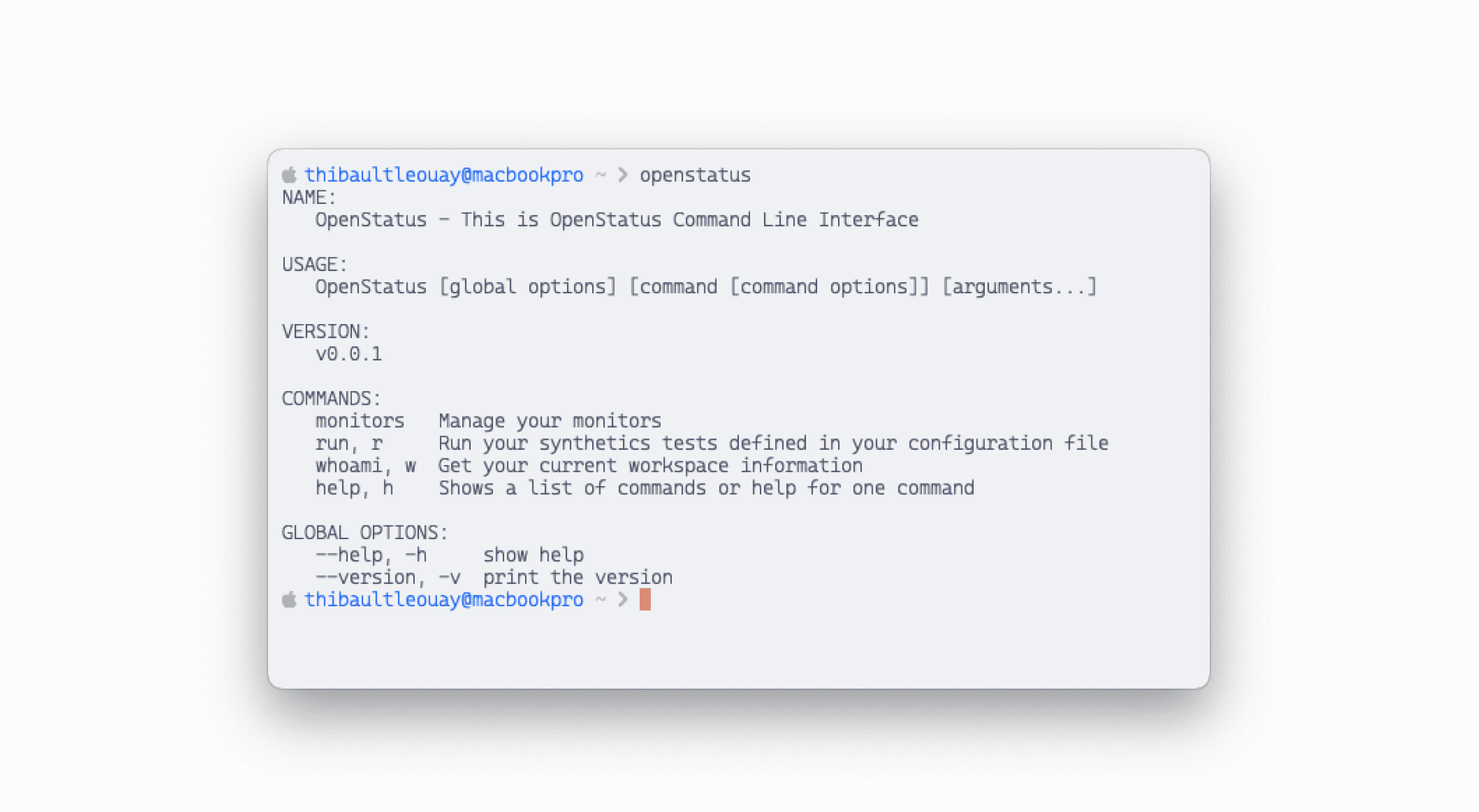
Installation
Install the openstatus CLI to manage your monitors directly from code.
macOS
Using Homebrew (recommended):
brew install openstatusHQ/cli/openstatus --cask
Or using the install script:
curl -fsSL https://raw.githubusercontent.com/openstatusHQ/cli/refs/heads/main/install.sh | bash
Linux
curl -fsSL https://raw.githubusercontent.com/openstatusHQ/cli/refs/heads/main/install.sh | bash
Windows
iwr https://raw.githubusercontent.com/openstatusHQ/cli/refs/heads/main/install.ps1 | iex
Verify installation
Run the following command to confirm the CLI is installed:
openstatus --version
You should see output like:
openstatus version x.x.x
Configure API authentication
- In your openstatus dashboard, go to Settings > General and find the API Keys card.
- Click Create and copy the value — you won't see it again after closing the dialog.
- Make it available to the CLI as an environment variable:
# macOS / Linux
export OPENSTATUS_API_TOKEN=<your-api-token>
# Windows PowerShell
$env:OPENSTATUS_API_TOKEN="<your-api-token>"
Note
Add the export to your shell profile (~/.bashrc, ~/.zshrc, or ~/.config/fish/config.fish) to persist across sessions. You can also pass the token per-command with -t <your-api-token> instead.Note
The CLI readsOPENSTATUS_API_TOKEN. The openstatus SDKs (Node.js, Python, PHP) read the same API key value from OPENSTATUS_API_KEY instead — you can set both to the same value if you use both tools.Export your workspace to Terraform
The CLI can write your existing workspace out as ready-to-use Terraform configuration, so you don't have to translate your monitors by hand:
openstatus terraform generate
Files are written to ./openstatus-terraform/ by default; pass --output-dir to choose another
directory, and --force to overwrite an existing one. The export covers monitors, status pages,
component groups, notification channels, and private locations.
Checkpoint: open the generated .tf files and confirm your monitors are there, with the names
and URLs you expect.
Manage it with Terraform
From the output directory, the standard Terraform workflow takes over:
terraform init    # download the openstatus provider
terraform plan    # preview what will change
terraform apply   # apply the changes
To adopt resources that already exist rather than recreate them, import them into state first:
terraform import openstatus_http_monitor.website <monitor_id>
From here on, edit the .tf files, open a pull request, and let terraform plan show the diff
before anything reaches your workspace.
What you've accomplished
- Installed the openstatus CLI
- Configured API authentication
- Exported your workspace to Terraform configuration
- Learned the monitoring-as-code workflow
Troubleshooting
"command not found: openstatus"
Cause: The CLI binary is not in your PATH.
Fix (macOS/Homebrew):
brew reinstall openstatusHQ/cli/openstatus --cask
Fix (install script): Ensure ~/.local/bin is in your PATH:
export PATH="$HOME/.local/bin:$PATH"
"unauthorized" or "invalid token" error
Cause: Your API token is missing or incorrect.
Fix:
- Verify the token is set:
echo $OPENSTATUS_API_TOKEN - Regenerate the key in your workspace settings (Settings > General > API Keys)
- Make sure there are no extra spaces or newlines in the token value
The export is empty
Cause: Your workspace has no resources yet, or the token belongs to a different workspace.
Fix: Confirm which workspace the token belongs to with openstatus whoami, create at least one
monitor in the dashboard, then re-run the export.
What's next
- Manage openstatus with Terraform — the end-to-end Terraform workflow.
- Monitor your MCP server — a worked monitor definition.
Learn more
- Monitoring-as-code concept — why manage monitors as code.
- CLI reference — all available commands.
- Terraform provider reference — every resource, argument, and block.